Opening Your Project in VSCode
Every time you start a new project, you open a fresh VSCode window and point it at your project folder. This page walks you through exactly how to do that.
Step 1 — Open a fresh VSCode window
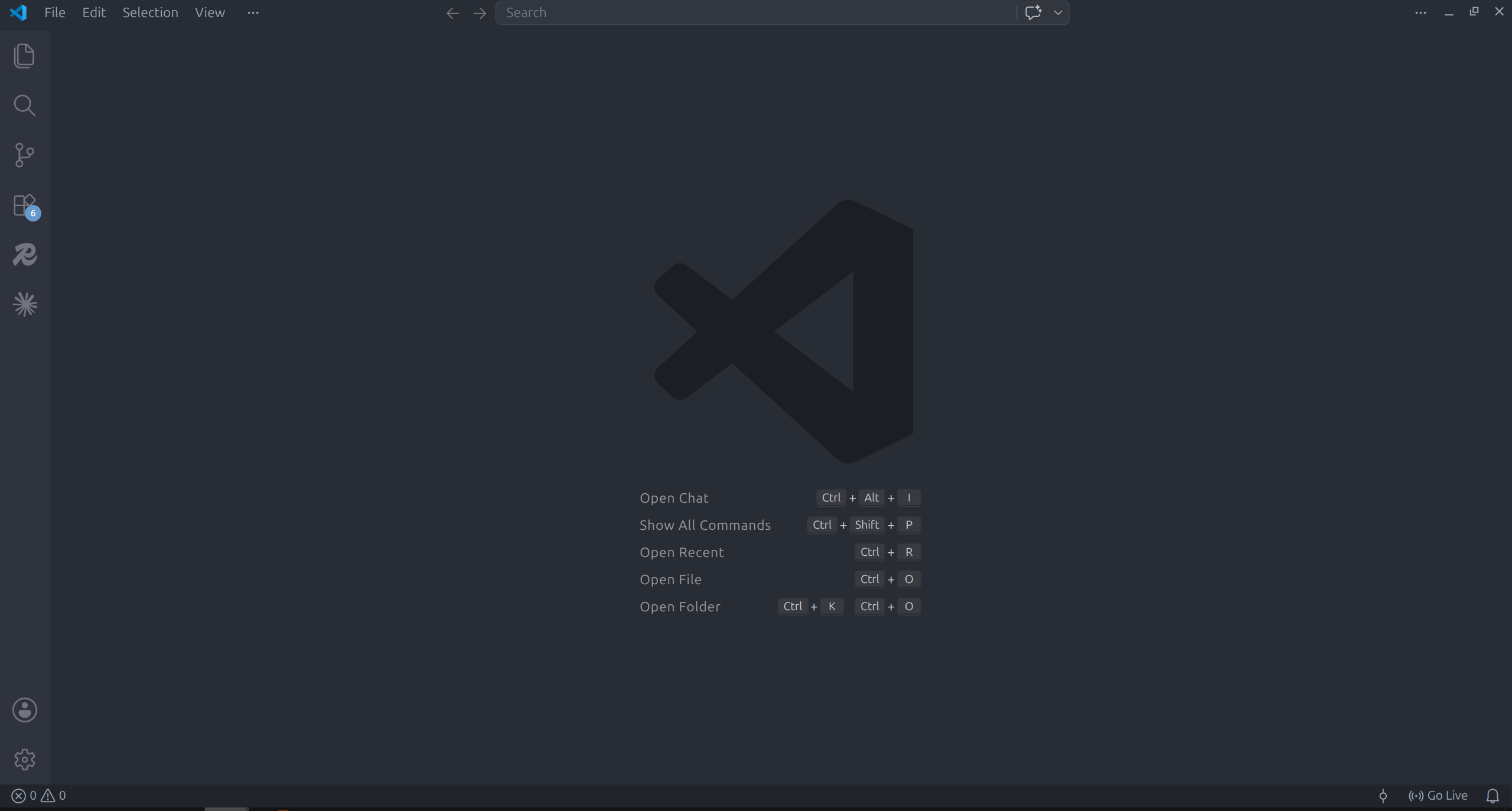
Launch VSCode. If it opens with a previous project still loaded, go to File → New Window to get a clean, empty window.
You should see the VSCode welcome screen — a clean slate with nothing loaded yet.
Step 2 — Open your project folder
Go to File → Open Folder.
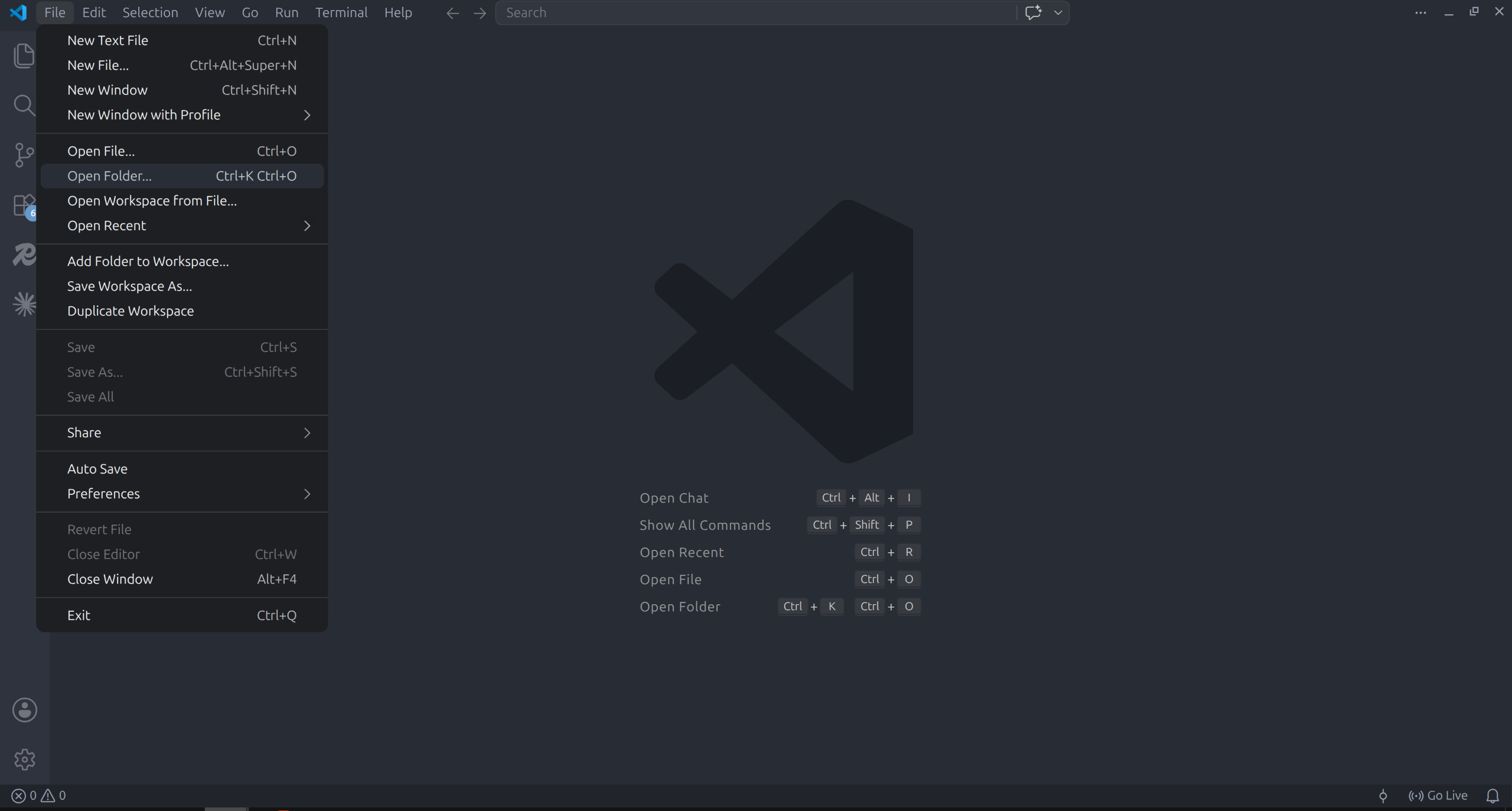
A file picker opens. Navigate to wherever you want to keep your project — your Desktop, your Documents folder, anywhere — and either:
- Select an existing empty folder you already created, or
- Create a new folder right there in the file picker and open it
Click Select Folder (Windows) or Open (Mac/Linux).
Step 3 — Your folder is now open
VSCode loads your folder in the Explorer panel on the left. If the folder is empty, the Explorer shows nothing inside it — that is perfectly fine. That is your blank starting point.
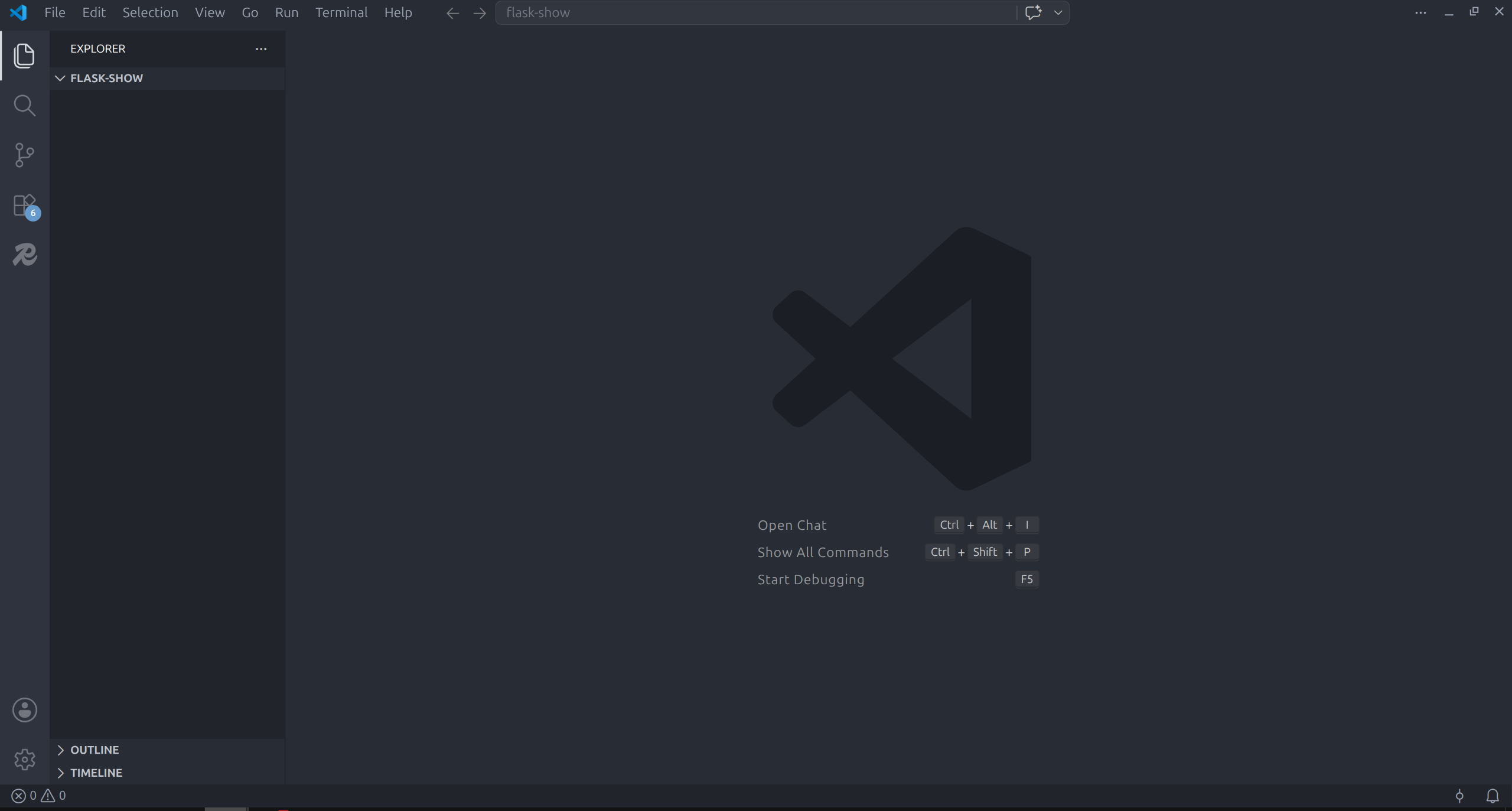
The folder name appears at the top of the Explorer panel. Any files or folders you create from here will live inside your project.
What to name your project folder
Use a simple, lowercase name with no spaces. A hyphen or underscore to separate words is fine.
Good examples:
my-flask-app
flask-project
web-project
Avoid spaces — they cause problems in the terminal later.
Challenge
Create a new empty folder on your Desktop called flask-project. Open VSCode, open a fresh window, and open that folder. Make sure the Explorer panel on the left shows your empty flask-project folder before moving on.